FileJoy 2.0.1 Cracked Version – Local AI-Powered Renaming
Introduction
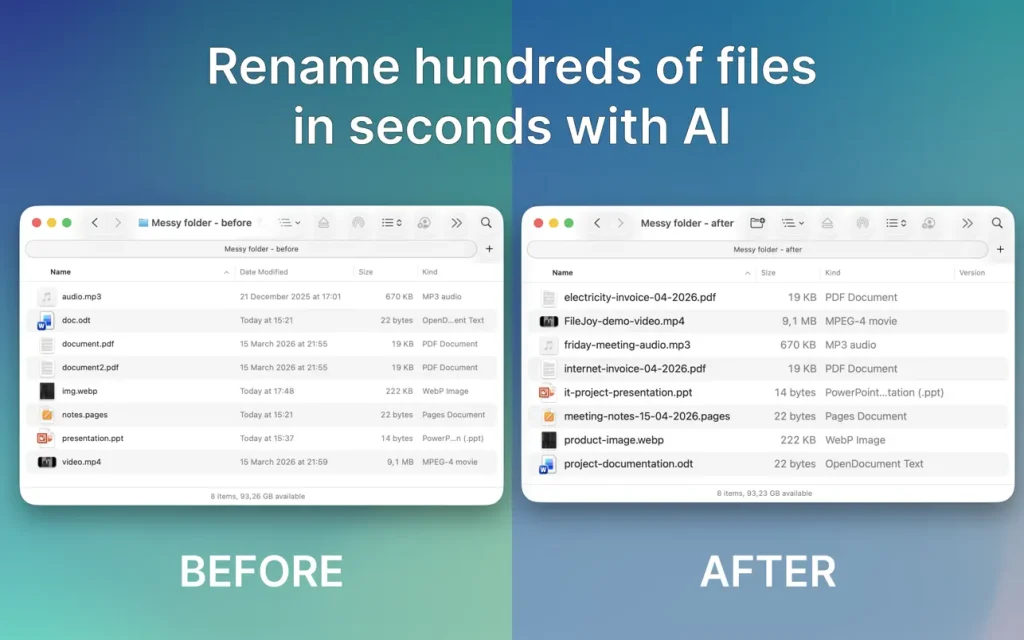
FileJoy Smart Assistant is a file management tool for macOS that provides quick actions via the right-click menu -and menu bar, allowing you to complete everyday tasks—such as organizing, renaming, converting, and cleaning up files—directly within your Finder workflow. It supports AI-powered smart renaming, semantic file search, and automatic folder organization. It also enhances search accuracy by integrating OCR, document content, and metadata. The file processing is designed to be completed on-device, minimizing privacy concerns associated with uploading files to the cloud.
The software includes a rich set of batch tools for operations such as image format conversion, converting images to PDF, compressing, resizing, and watermarking images, audio format conversion, extracting audio from video, and converting video to GIF. It also covers PDF merging, splitting, and compression; OCR text extraction; one-click text copying; removing duplicate files; cleaning up empty folders; flattening nested directories, batch renaming, copying paths, opening Terminal, and pasting clipboard content as text or images—all of which are high-frequency tasks. It is ideal for developers, designers, creators, and Mac users who need to process large volumes of files.
Screenshot
Features
FileJoy Smart Assistant is a macOS productivity tool that combines file organization, batch conversion, local AI search, PDF and OCR processing, folder cleanup, and common Finder enhancements. It can be quickly accessed via the right-click menu and the menu bar, helping users reduce repetitive steps and optimize bulk file processing workflows.
- Local AI Processing: Supports context-based smart renaming suggestions that generate more recognizable filenames based on file content, semantic meaning of the filename, and usage scenarios, utilizing Apple Foundation Models for on-device processing when available.
- Semantic File Search: Smart Search doesn’t rely solely on filenames; it also combines OCR text, document content, and metadata to locate files by meaning, making it ideal for quickly retrieving specific content from large volumes of documents, screenshots, PDFs, and project files.
- Privacy-First Design: Files do not need to be uploaded to the cloud; the main processing takes place locally on the Mac. Combined with OCR and Vision fallback capabilities, this enhances the automation experience while reducing the risk of sensitive files being transmitted externally.
- Batch Image Tools: Supports format conversion for JPG, PNG, HEIC, WebP, and other formats; converts single or multiple images to PDF; and provides common image processing capabilities such as compression, resizing, adding watermarks, and removing metadata.
- Audio and Video Conversion: Convert between audio formats such as MP3, WAV, and M4A; extract audio from videos; convert videos to MP3; or convert video clips to GIFs—all to facilitate content creation and media organization.
- PDF and OCR Tools: Offers PDF merging, splitting, and compression features, as well as the ability to extract text from images and documents. Recognized text can be copied with a single click, making it ideal for processing scanned documents, screenshots, and archiving materials.
- Folder Cleanup and Organization: Supports deleting duplicate files, removing empty folders, flattening multi-level nested directories, and batch renaming files within folders. It also includes an automatic organization feature to build a clearer directory structure.
- Enhanced Daily File Operations: Offers quick actions such as cut and paste, “Send To,” “Copy To,” copying file paths, creating template files, modifying file and folder permissions, and pasting clipboard content as a .txt or .png file.
- Developer-Friendly Access: Open Terminal, iTerm2, or Warp directly from a file’s location, reducing the need to switch back and forth between Finder and the terminal—ideal for development, scripting, and project management.
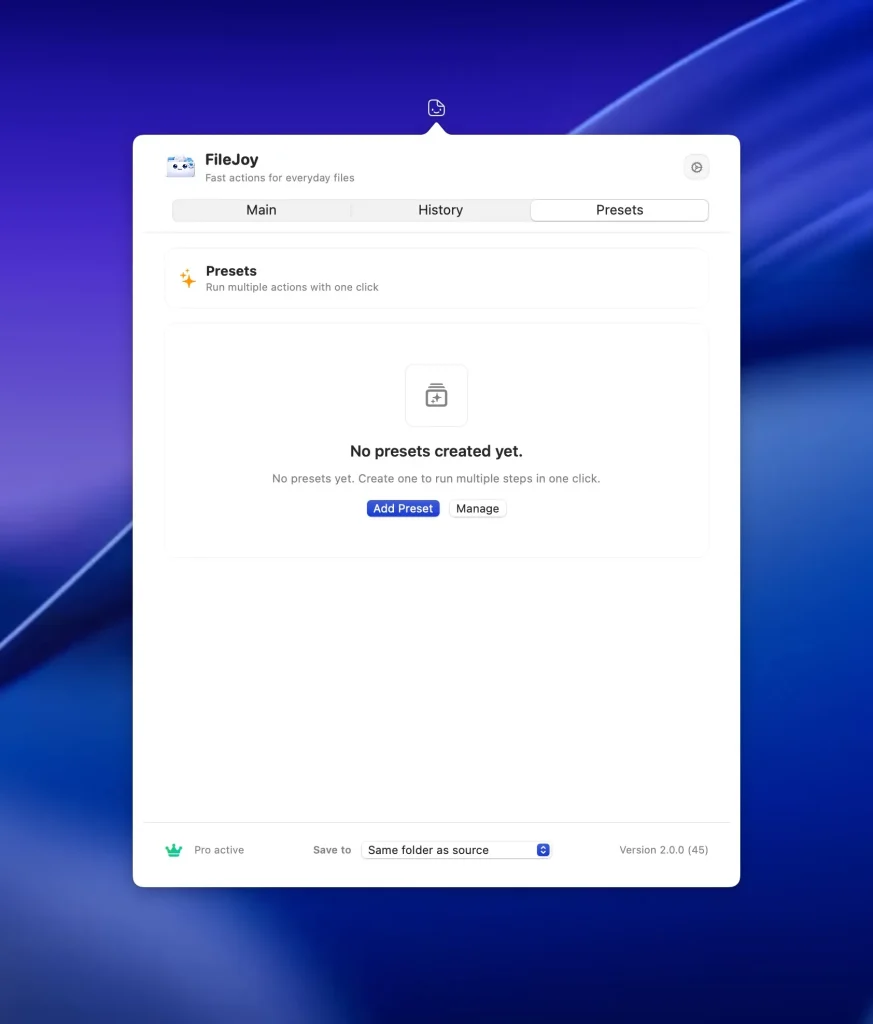
- Automated Workflow Support: Supports action presets, multi-step workflows, batch organization, advanced folder operations, custom file templates, and extensions for local AI workflows—perfect for users with many repetitive file tasks.
Recent Posts